
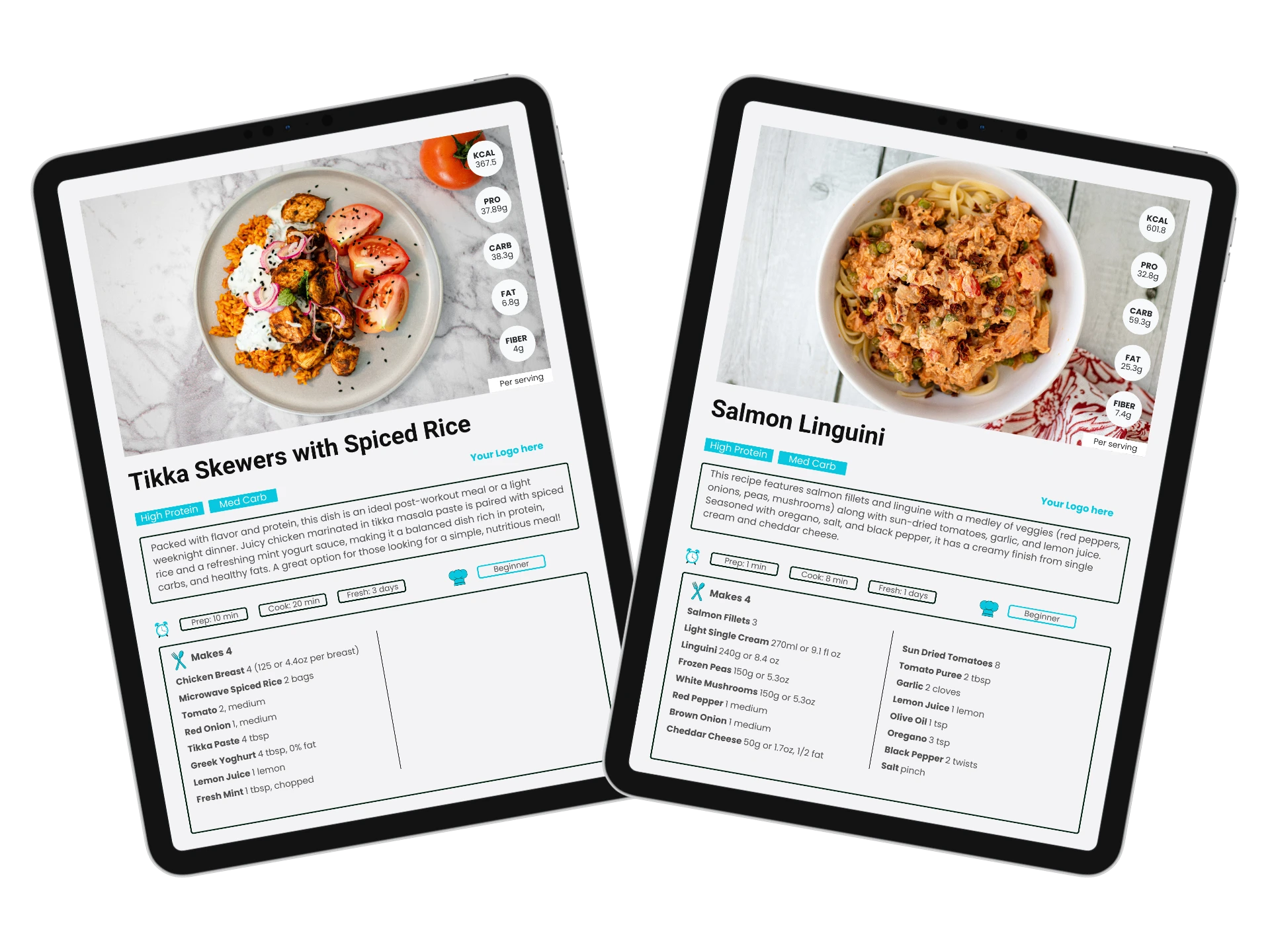
Adding your branding helps a resource feel like part of your coaching service. A familiar logo, consistent colours and readable fonts can bring a recipe book into line with the rest of your business, without redesigning every page.
This guide takes you through five steps: adding your logo, replacing repeated text, changing colours, updating fonts and exporting the finished PDF.
We’re using a recipe book in the recordings, but you can apply the same approach to your editable nutrition guides.
Before you start
Open the editable Canva template from your resource library, rather than uploading the finished PDF. Keep an untouched copy and give your working version a recognisable name.
Have these ready:
- Your logo, ideally with a transparent background.
- Your brand colour codes.
- Your preferred heading and body fonts.
- Your business name, website and any contact details you want to include.
01 / Your logo
Add your logo to the front cover
The recording uses a logo already saved in Canva’s Brand panel. If yours is not there, open Uploads → Upload files and select your logo.
Add it to the cover, then resize it using a corner handle to keep its proportions. Position it in the space provided, leaving enough room around it that it does not compete with the page heading.
You can keep things simple and add your logo to the front cover only. Logos on inside pages are optional. If you would like to add them, remove the placeholder words in step two first, then copy your logo into those spaces.
02 / Repeated text
Replace names and remove placeholder text
There is no need to edit the same business name on every page individually. Open Find and replace text from Canva’s File menu. Search for the exact wording you want to change, enter your replacement and check the matches before selecting Replace all.
In the recording, “Your Name Here” is replaced with “Ronan O’Brien”.
Remove the logo-placeholder text
Search for “Your Logo Here”. Leave the replacement field empty and select Replace all. Repeat this for “Logo Here”.
This removes the placeholder wording from the book—it does not add or replace any logo images.
Add logos to inside pages, if you wish
You can leave the inside pages without a logo and use your front-cover branding only. If you would also like your logo inside, copy it and paste it into the spaces after removing the placeholder text. Adjust its size and position to suit each page, as demonstrated in the first recording.
When replacing other text, use specific phrases rather than common words that might also appear in recipes. If a text element does not change, check whether it is locked.
Scan the pages for awkward line breaks or crowded boxes. A longer business name may need a little more space. If you change a website address, check its clickable link separately too.
03 / Brand colours
Change the colours throughout the design
Select an editable element with a colour you want to change, then open its colour control in the toolbar. Choose a colour from your saved palette or enter your brand’s colour code.
Where Canva offers Change all, select All pages to apply that replacement throughout the design. The recording uses this to update repeated colours without selecting every element individually.
Repeat the process for the other colours you want to replace. Text colours may show a slightly different Change all control.
You do not need to change every colour. Keeping neutral backgrounds and dark body text often makes the finished book easier to read. Pay particular attention to small labels and coloured text: both should remain clear against their backgrounds.
These controls change editable design elements. They do not recolour the contents of a photograph or flattened image.
04 / Typography
Update the fonts
Select a text box and open the font menu. Choose your preferred font and weight.
In the recording, the heading changes from Inter to Montserrat, with Bold selected. Under Change all, choosing All pages applies the font replacement across the design.
If your book uses another font for body text, repeat the process for that font separately.
Then check the layout. Fonts take up different amounts of space, so a heading that fitted before may wrap onto another line. Review recipe titles, ingredients and longer paragraphs, adjusting text boxes where needed.
Choose fonts that remain comfortable to read at the size your clients will actually use.
05 / The finished book
Check the details and download your PDF
Before downloading, make one final pass through the design:
- Is your logo positioned consistently on the pages where you chose to use it?
- Have you removed the placeholder names and wording?
- Are your website and contact details correct?
- Does all the text fit comfortably?
- Are the colours readable?
- Have the recipe instructions and quantities remained intact?
Open Share → Download. In the interface shown in the recording, select PDF, then the Digital preset for a book you will share electronically. Choose All under the page selection and download the file.
For professional printing, check the printer’s requirements before choosing the Print preset or changing export settings.
Once the download finishes, open the PDF outside Canva. Check the pages, test the links and view it on your phone as well as your computer. That final check can reveal small text or layout issues that were easy to miss in the editor.
Give the file a clear name, such as Your Business — High-Protein Recipe Book.pdf.
Keep your branded copy for next time
Save the editable Canva version as well as the finished PDF. It gives you a useful reference for your next resource, especially when you want your logo placement, colours and typography to stay consistent.
Ready to personalise your resources? Open your library.
Want more background on choosing and using ready-made materials? Read our guide to white-label nutrition resources.
Build your collection
Ready-made resources.
Your brand, your clients.
Explore the recipe books, nutrition guides and other resources inside the Complete Coach Toolkit.
Explore the Complete Coach Toolkit